
Sign in with your email
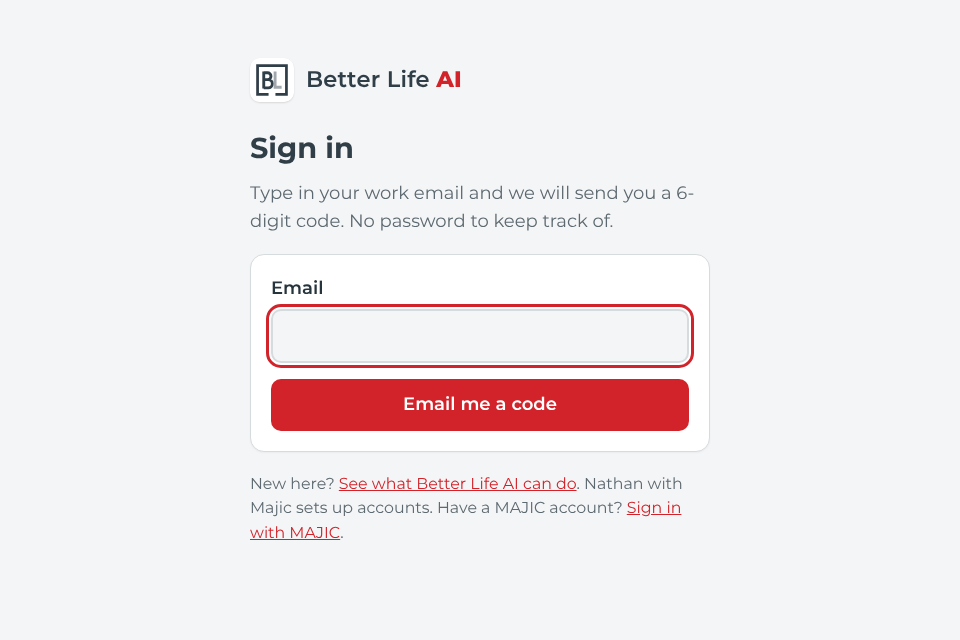
Choose Sign in at betterlife.appmajic.ai and type your work email. There is no password to remember.
Bring your team along. We will go one screen at a time, in the order you will use it, from signing in to handing off your first big job.
Choose Sign in at betterlife.appmajic.ai and type your work email. There is no password to remember.
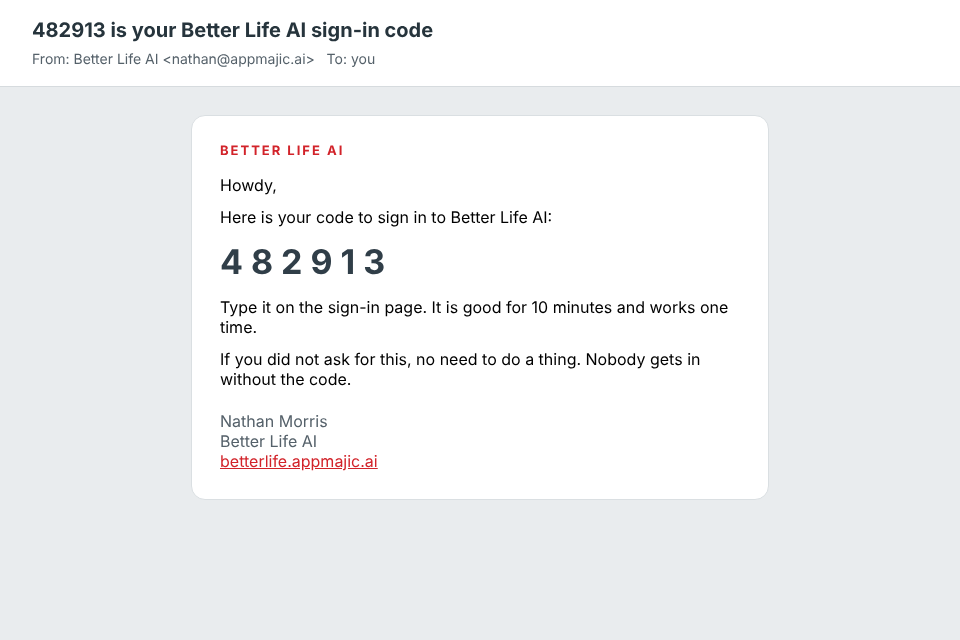
A 6-digit code shows up in your inbox from Better Life AI. Type it in and you land right in your chat. The code is good for 10 minutes and works one time.
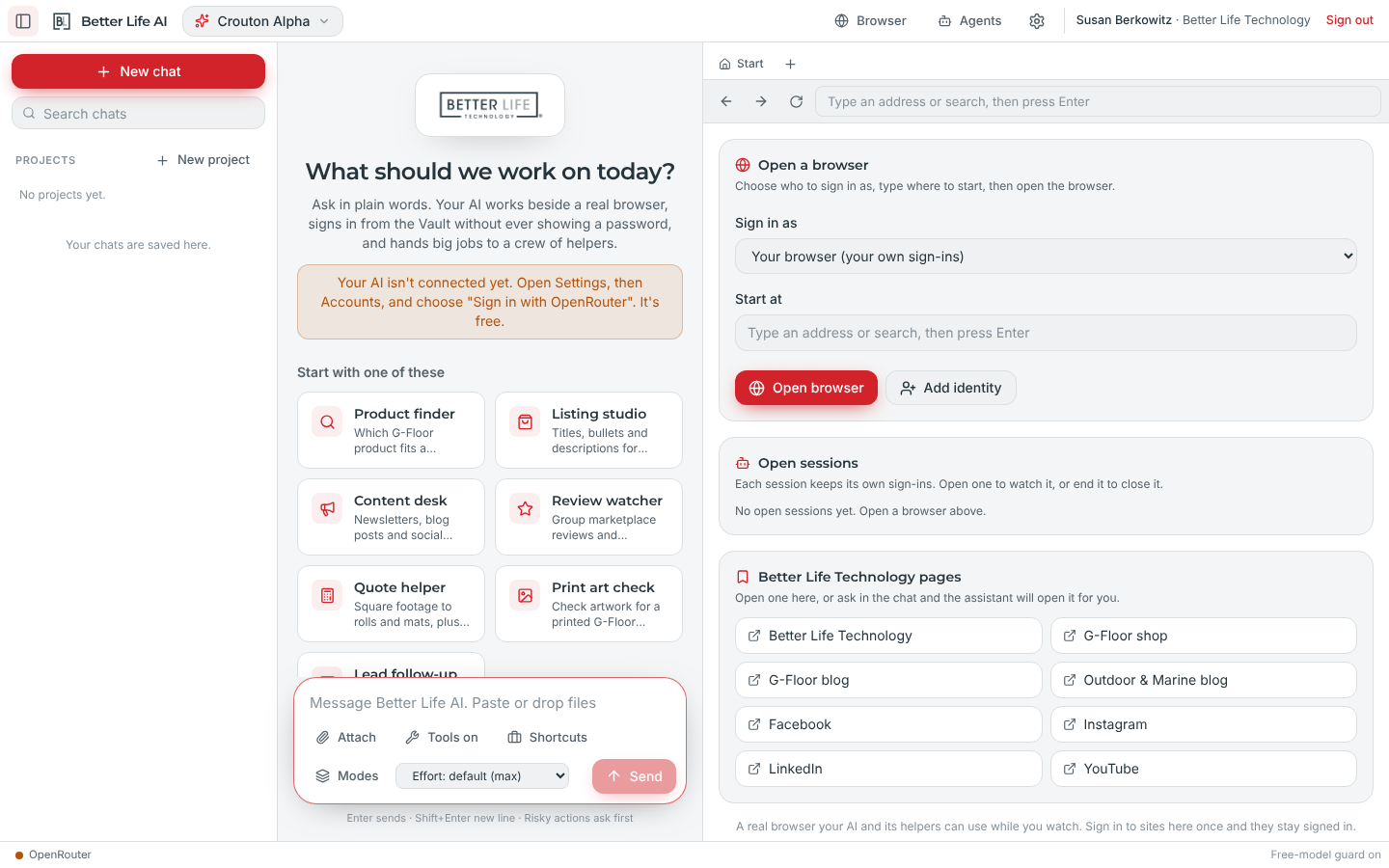
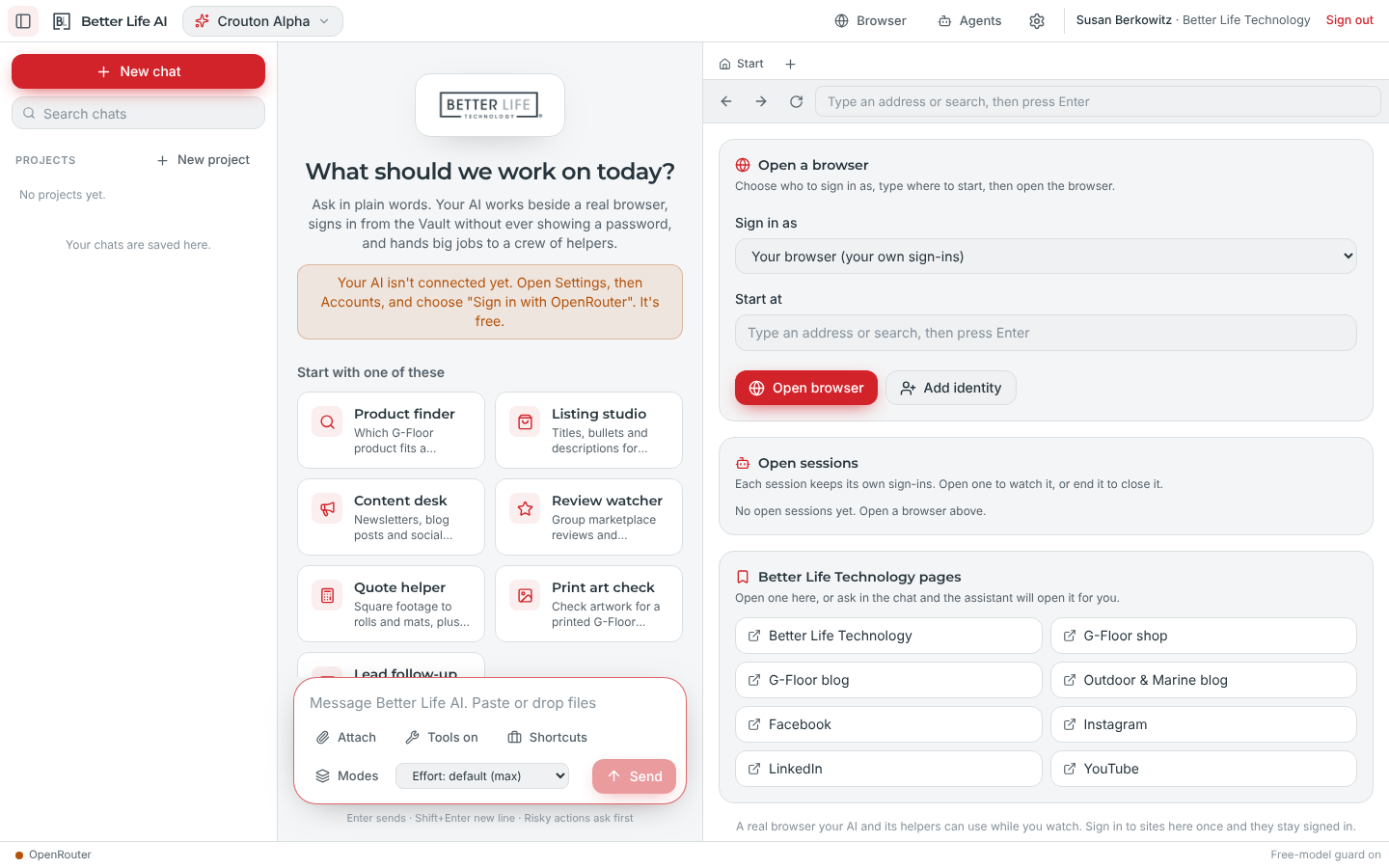
Your seven tools sit right there: Product finder, Listing studio, Content desk, Review watcher, Quote helper, Print art check and Lead follow-up. Click one to get started, or just type what you need.
Ask it to research a question, write a draft, check a page or compare listings, and it gets it done. It checks facts against bltllc.com and gfloor.com and tells you where they came from. Drop in a file and it reads that too.
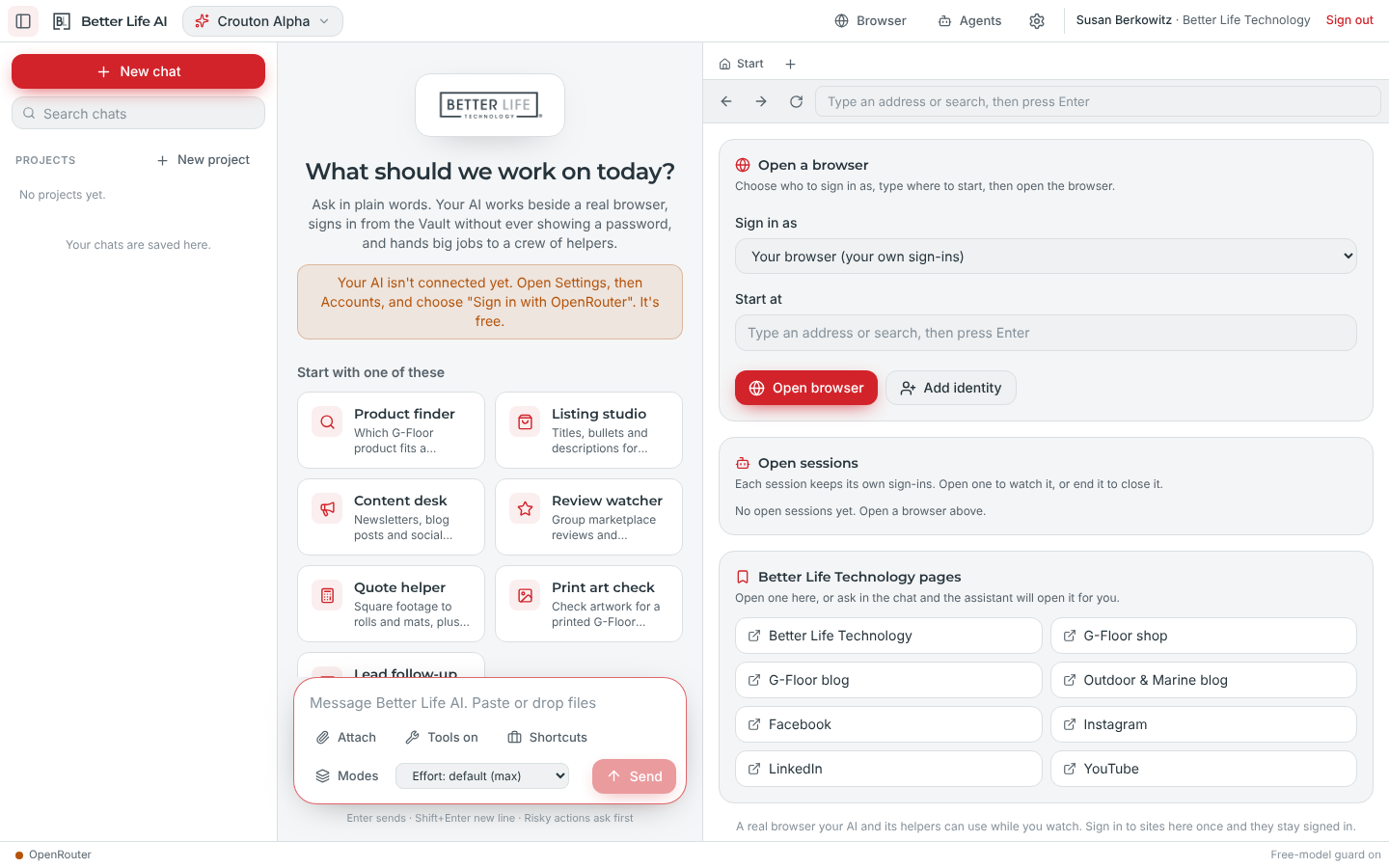
The browser beside the chat is the real thing. You can watch it open retailer pages, read reviews, check listings and fill in forms. It stops and asks before anything is posted, published, sent or bought.
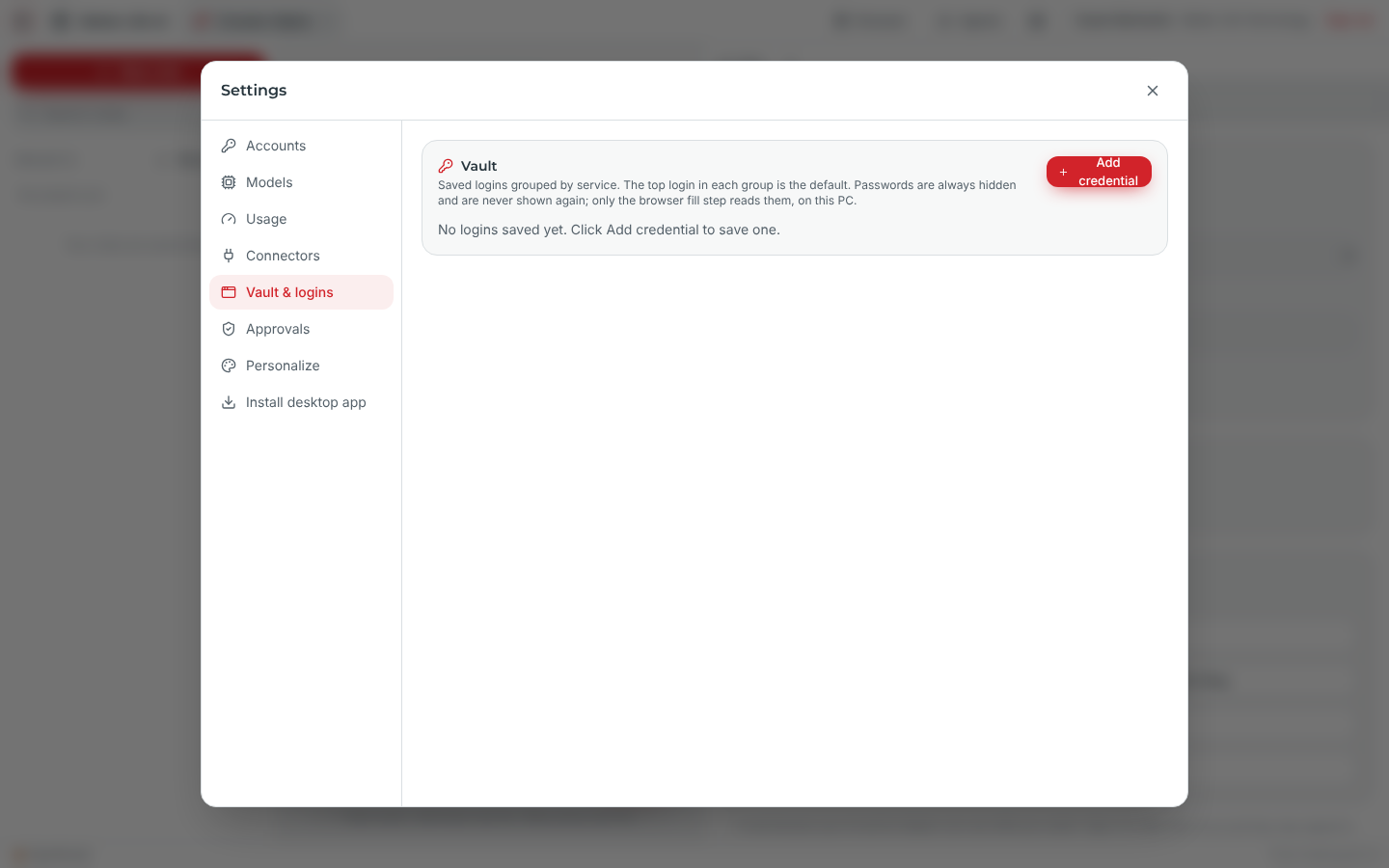
Save a login once, under Settings, Vault and logins, and your AI signs in for you after that. It never shows or repeats the password.
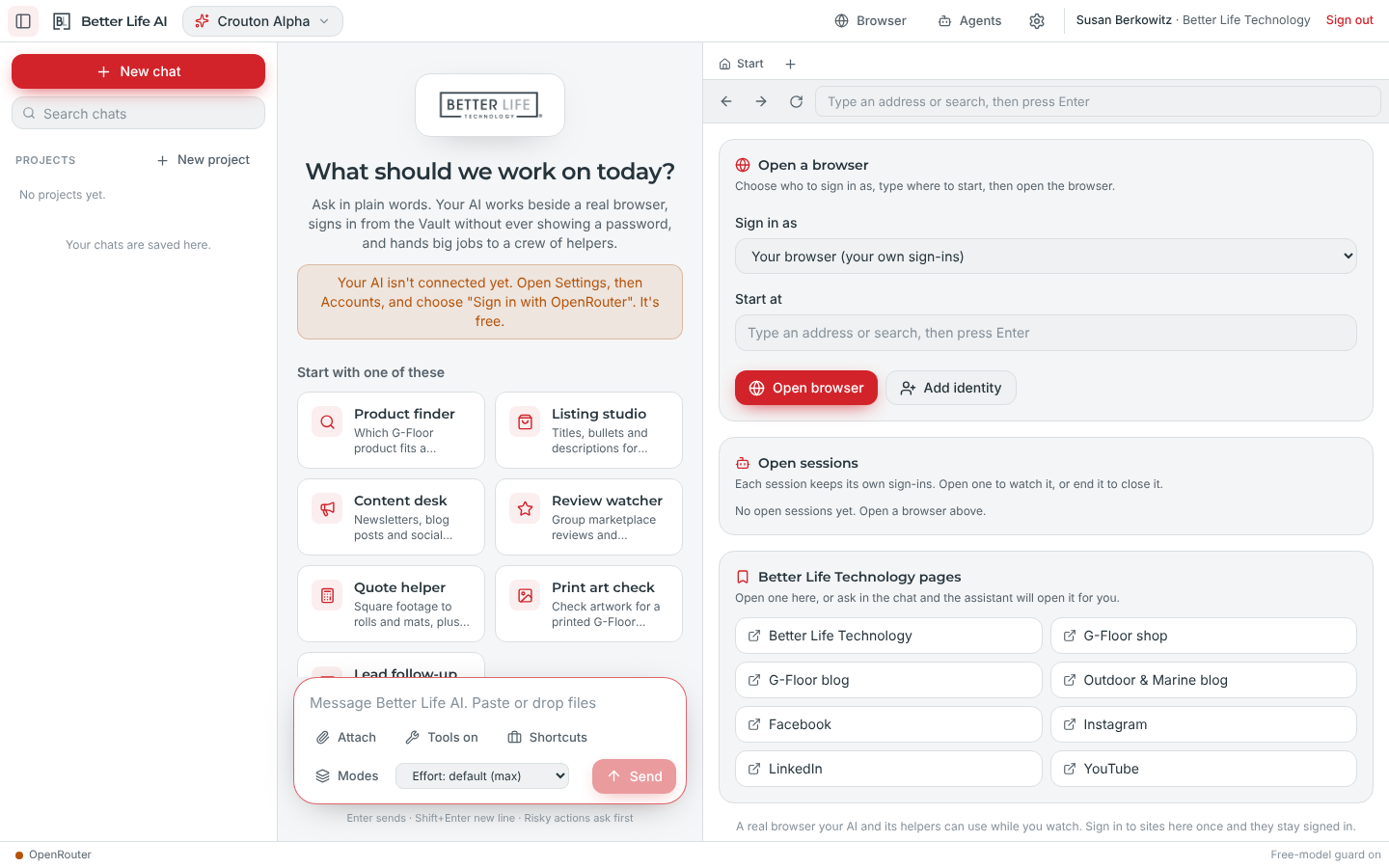
Give it a big job and a crew of helpers splits it up, works at the same time and brings back one combined report. You can watch each helper in the Agents panel.
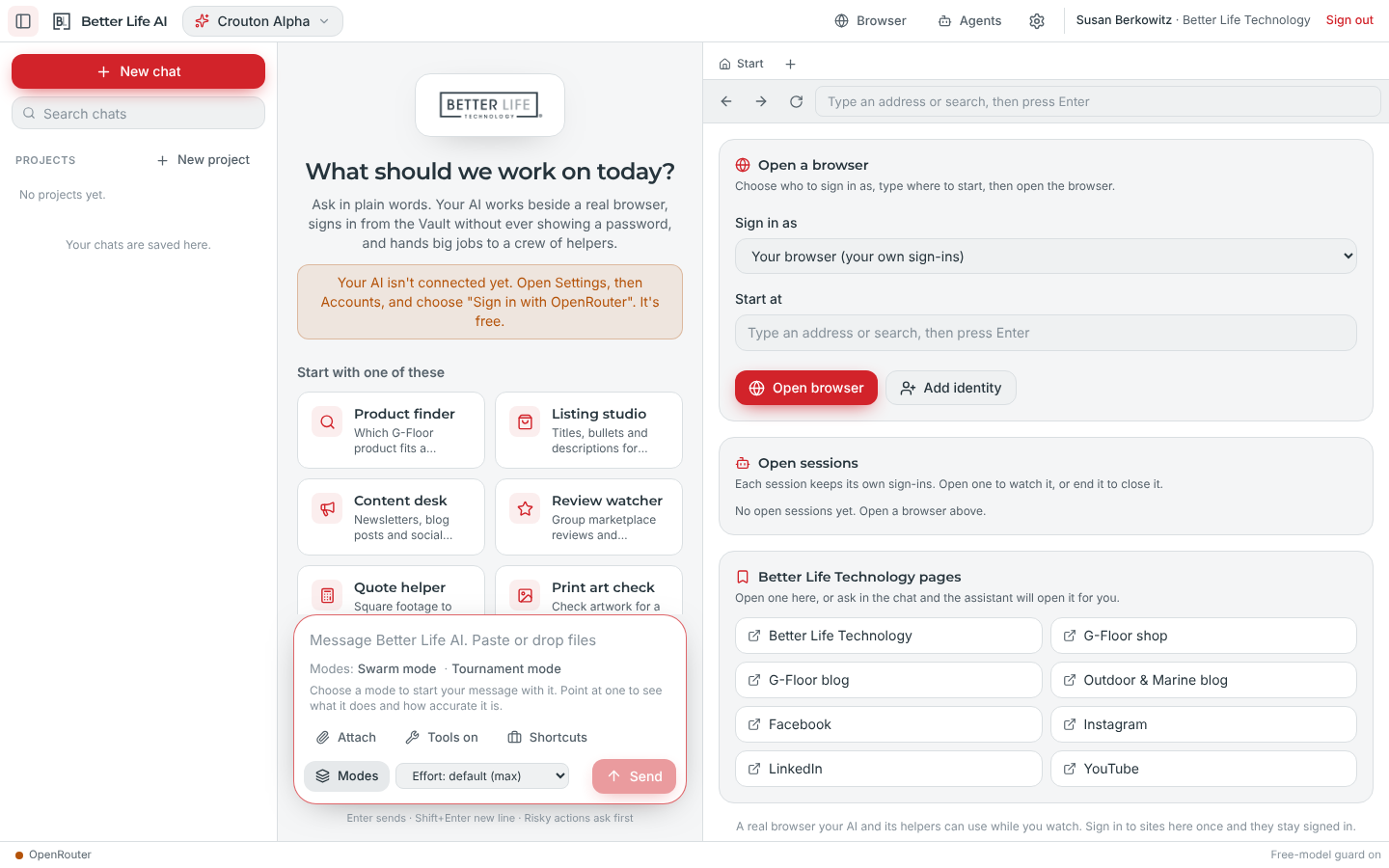
Open Modes next to the message box. Swarm puts many hands on a big job. Tournament has several drafts compete so the best one wins.
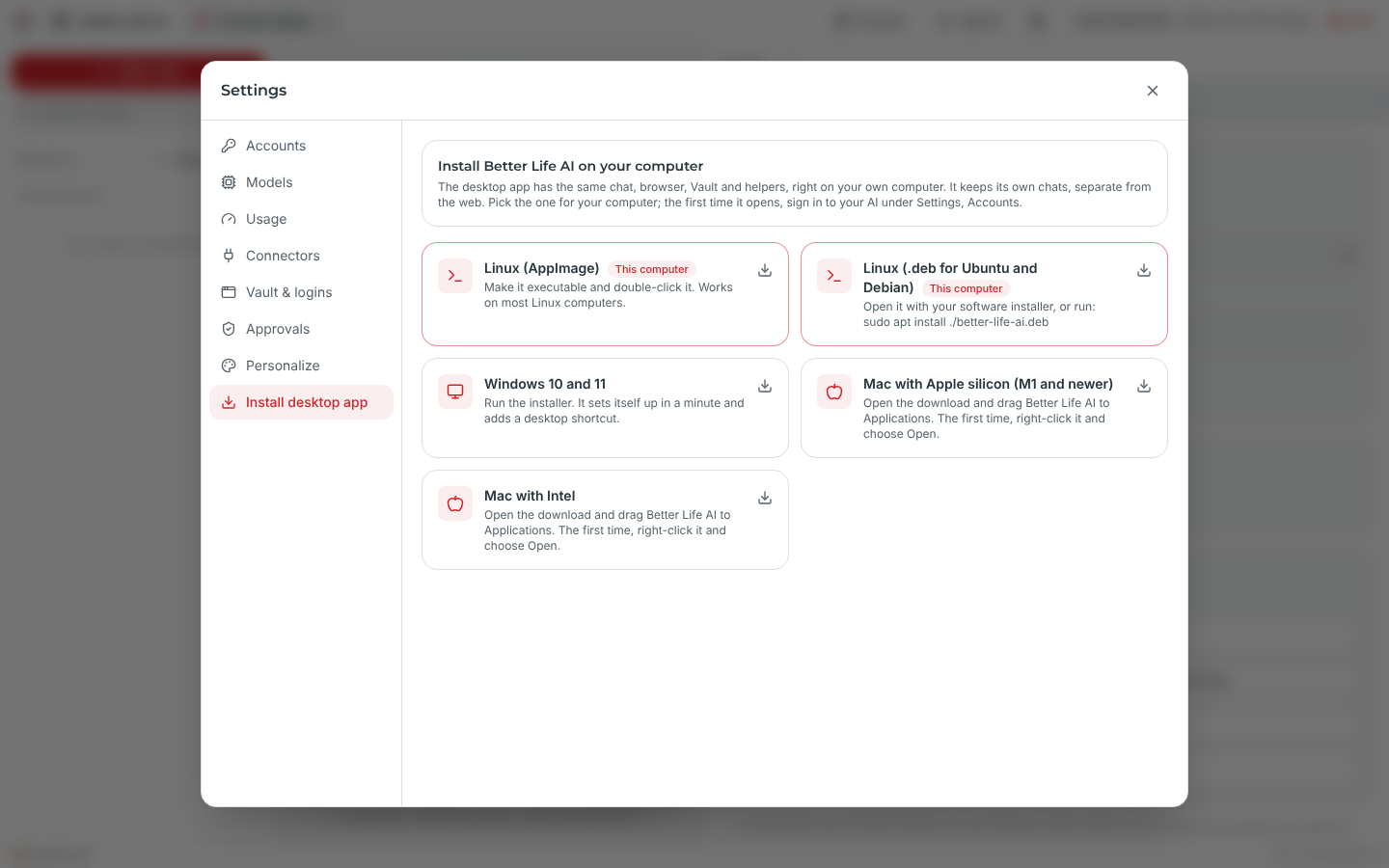
Want it close by? Go to Settings, then Install desktop app, and pick Windows, Mac or Linux. The one for the computer you are on is listed first. The desktop app keeps its own chats, separate from the web.
Pick one small, real job from this week, like Product finder for a customer who needs a garage floor or Content desk for the next newsletter. Ask in plain words and read the draft when it comes back. You stay the boss of anything that gets posted, published, sent or bought.