
Pull up a chair and put your AI to work
A chat that does the work, with a real browser beside it and a crew of helpers ready when the job gets big. Built for the Better Life Technology team.
Sign in with a code sent to your email. Nothing to remember.
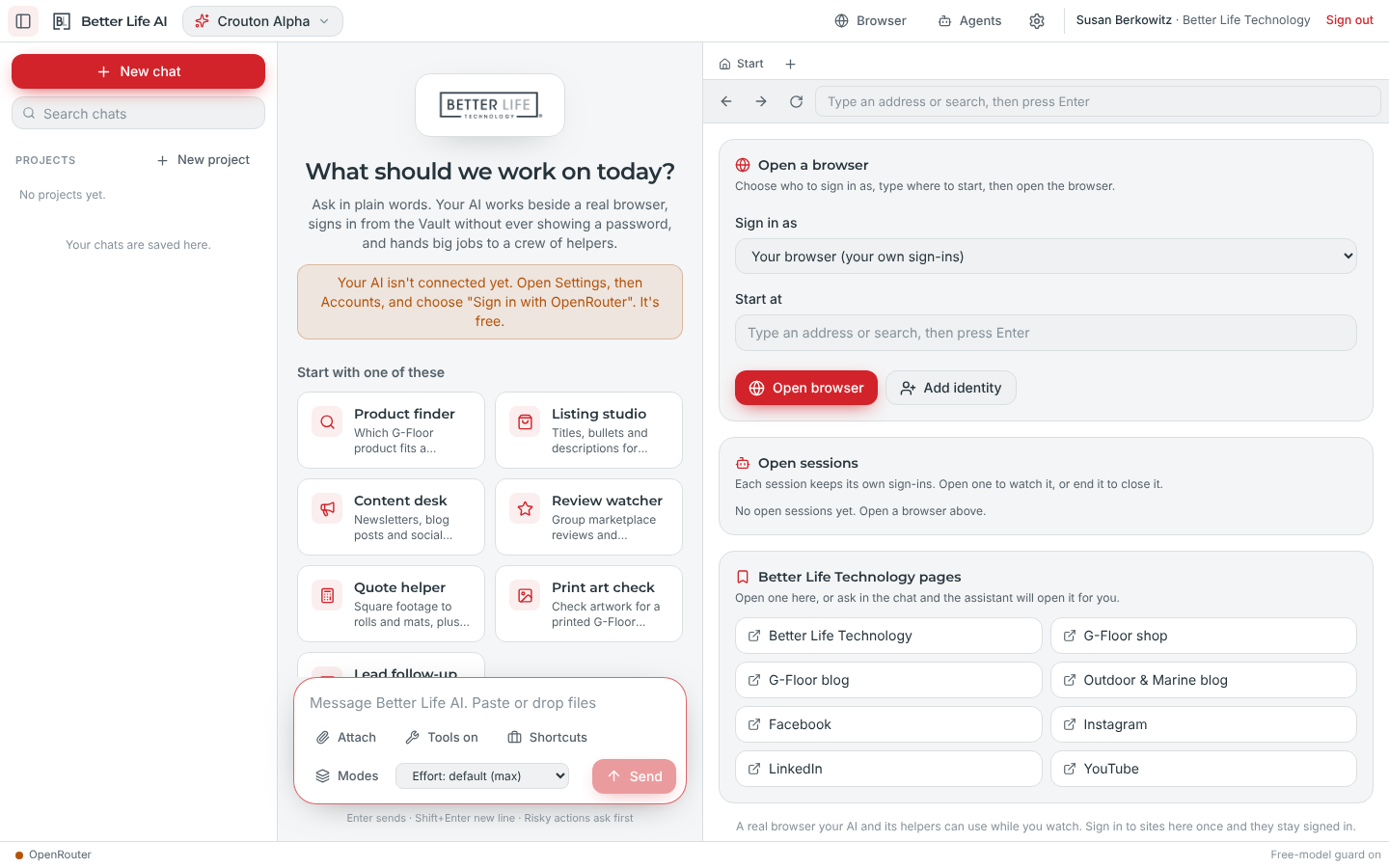
What it can do
Real handy help for the work you and your team already do each week: newsletters, blog posts, social posts and listing pages. Tell it what you need in plain words. You are the boss of it.
-
Chat that does the work
Ask it to research a question, write a draft, check a page or compare listings. It answers and gets it done, with drafts in the Better Life voice ready for your review. When facts matter, it checks bltllc.com and gfloor.com and tells you where each one came from.
-
A real browser right beside the chat
Watch it open retailer pages, read reviews, check listings and fill in forms, at Amazon, Wayfair, Menards, Sam's Club and gfloor.com. It stops and asks before anything is posted, bought or sent.
-
The Vault, for logins you use all the time
Save a login once and your AI signs in for you after that. It never shows or repeats the password, which is real handy when you are hopping between the places you post and check.
-
A whole crew of helpers for a big job
Hand off a big job and a team of helpers splits it up, works at the same time and brings back one combined report. You can watch them work the whole way.
-
Drop in the files already on your desk
PDFs, spreadsheets, photos, artwork and price lists. It reads them and uses them for the job at hand, so nothing has to be retyped to get started.
-
It remembers what you tell it to
Tell it your preferences and house style and it keeps them in mind next time. Your chats stay put too, so you can pick up where you left off.
-
It asks first
Drafts are the default. Anything that posts, publishes, sends or buys waits for your OK. No fuss, no surprises.
Seven tools for the work on your desk
They sit right on the chat home. Click one, say what you need, and it gets going.
Product finder
Which G-Floor product fits a garage, trailer, boat, gym or shop, with the specs behind it.
Listing studio
Titles, bullets and descriptions for Amazon, Wayfair, Menards, Sam's Club and gfloor.com, with the specs kept consistent.
Content desk
Newsletters, blog posts and social posts in the Better Life voice, ready to review.
Review watcher
Marketplace reviews and customer questions grouped into themes, with draft replies.
Quote helper
Square footage to rolls and mats, plus a draft quote for a dealer or vehicle builder.
Print art check
Artwork for a G-Floor Graphic printed floor checked for size, sharpness and bleed before a proof.
Lead follow-up
Trade-show, dealer or website notes turned into follow-up emails ready to send.
A day with Susan
Here is how a regular day can go for Susan Berkowitz, Marketing Director at Better Life Technology. She says what she needs in plain words, and her AI saves her a bunch of running around.
Reviews
Review watcher groups what customers are bringing up and leaves draft replies for her to look over.
Drafts
Content desk writes the newsletter, blog and social drafts in the Better Life voice. Nothing goes out until she says so.
Listings
Listing studio checks titles and specs at each retailer while she watches the browser do the legwork.
Print art
She drops in artwork for a G-Floor Graphic floor and gets a check on size, sharpness and bleed before a proof.
Dealer leads
The crew turns her dealer notes into follow-up emails, one per lead, ready for her to send.
She makes the calls and does the final review. When she closes the chat, her work is right there waiting the next morning.
A real browser, right beside the chat
Ask it to check a listing or read the latest reviews and you can watch it happen. It opens the page, reads it, fills in what needs filling and brings the answer back to the chat.
It will not post, buy or send a thing on its own. When it gets to that step, it stops and asks.
The Vault keeps your logins out of sight
Save a login once, for a retailer portal or a social account, and your AI signs in for you after that. The password is never shown or repeated, not even to you in the chat.
A whole crew of helpers
Some jobs are too big for one chat to carry alone. Hand the big job to your crew. They split the work between them, work at the same time and bring it back as one report you can read in one place. Real handy when the list is long.
Swarm
Many hands on a big job. Each helper takes a part, like checking every retailer's listing at once.
Tournament
Several drafts compete and the best one wins. Good for headlines, listing titles and social posts.
Works right where you are
Pull it up in any web browser at betterlife.appmajic.ai, on your computer or your phone. Rather have it on your computer? There is a desktop app for Windows, Mac and Linux under Settings, then Install desktop app.
The web and the desktop app each keep their own chats.
Signing in is no fuss
- Choose Sign in and type your work email.
- We send a 6-digit code to that email.
- Type the code and you land right in your chat, ready to get to work.
No password to keep track of.
Questions folks ask
How do I sign in?
Type your email and we send you a 6-digit code. Type the code and you are in your chat. There is no password to remember, which is real handy on a busy morning.
Can I drop in files of my own?
Yes. Drop in PDFs, spreadsheets, photos, artwork or price lists. It reads them and uses them in the work at hand.
Will it remember how we like things done?
Yes, whatever you tell it to remember. It keeps your preferences and house style in mind, and it keeps your chats so you can pick up where you left off.
Will it post, publish, send or buy anything on its own?
No. It asks first. Anything that posts, publishes, sends or buys waits for your OK. Drafts are the default and you are the boss of it.
How can I check the facts it gives me?
It checks facts against bltllc.com and gfloor.com and names where each one came from, so you can check its work before anything goes out.
Do my chats follow me between the web and the desktop app?
No. The web and the desktop app keep their own chats. Use whichever fits where you are.
Who do I call if something is not right?
Nathan Morris with Majic set this up for your team. Reach him at nmorris@greencommllc.com.
Try it on this week's work
Bring a draft, a listing or a file you keep going back to, and see what it does with it.